


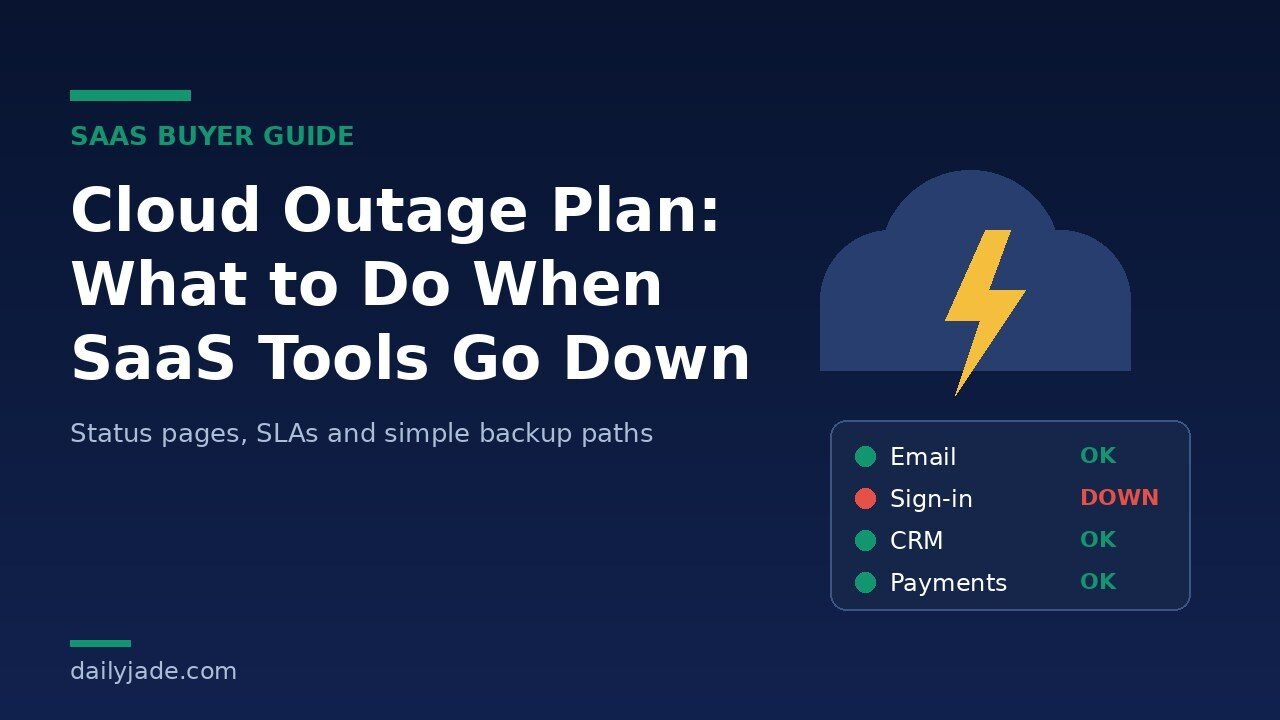
On Tuesday, November 17, 2026, many Apple services stopped working for part of the day. People could not sign in to iCloud, and the App Store, Apple Music and other services had problems too. In the same week, people also searched for Gmail, Amazon and internet provider outages. For a lot of small teams, it was a quick reminder that the tools we pay for every month can stop without warning.
This guide is for people who buy and manage software for a business. You will not find panic here. You will find a simple plan: what to check before you buy a tool, what to do in the first 30 minutes of an outage, and how to keep work moving when a cloud service goes down.
Quick answer: what should you do about cloud outages?
Make a short list of the tools your business cannot work without. For each one, write down where its status page is, what its uptime promise says, and one backup way to keep working if it stops. Then share that list with your team before the next outage, not during it.
You cannot stop a big provider from going down. But you can decide ahead of time who checks what, how you talk to customers, and which work can wait. That turns a stressful day into a slow day.
Why cloud outages are trending right now
We checked Google Trends “Trending now” for the United States, Technology category, past seven days on November 22, 2026. The search “apple outage” showed 200K+ searches, a rise of about 1,000%, and a trend that lasted about one day and eight hours. Related searches on the same list included “gmail outage”, “amazon down”, “spectrum outage” and “google cloud”.
Here is what actually happened, based on news reports:
- Apple, November 17: TechCrunch reported that iCloud sign-in, the App Store, AppleCare on Device and Apple Music had problems, and later iCloud Mail, iCloud.com, Apple School Manager and other services. Apple told TechCrunch that an internal update caused the outages and that it was not a cyberattack. By that evening, Apple’s status page showed the issues as resolved.
- Apple, one week earlier: MacRumors reported a separate problem on November 10 that hit iCloud Mail, Calendar and Contacts for some users.
- Gmail, November 17: Many people reported Gmail problems on outage sites. But TechCrunch reported that Google said Gmail was running normally. The same story mentioned problems at Microsoft, airlines and banks in the same week.
That last point matters. When one big service has trouble, people start to blame every slow app on an outage. Part of a good plan is knowing how to tell a real provider outage from a problem on your own side.
What an outage really costs a small business
Most outages are short. A few hours is common. So why plan at all? Because the cost is not the hours. The cost is what breaks during those hours.
Think about what stops when one tool goes down:
- Sign-in tools: If your team signs in to other apps with one account (like Google, Microsoft or Apple), a sign-in problem can lock people out of many apps at once.
- Email: Quotes, invoices, password resets and customer replies all stop. Some customers will think you ignored them.
- Calendars: Meeting links disappear. People miss calls because they cannot see where to join.
- Payments and checkout: Every minute is lost sales if your store or payment tool is down.
- Automations: Tools like Zapier, Make or n8n may fail quietly. When the service comes back, you might get missing records or doubles. Our guides on error handling in Make scenarios and fixing duplicate records in Zapier show what to clean up after.
So the real question is not “how long was it down?” It is “what did we lose, and what did we have to fix later?”
Step 1: Map your critical tools
Start with one simple list. Open a shared doc or sheet and write down every tool your team uses each day. Then mark each one with one of three labels:
- Must work: If this stops, sales, support or payroll stops. Example: email, payments, your website, your main sign-in.
- Should work: Work slows down, but you can wait a few hours. Example: project boards, chat, design tools.
- Can wait: Nice to have. Example: reporting dashboards, social schedulers.
For every “must work” tool, add four more things to the row:
- The link to its official status page.
- The name of the person in your team who owns it.
- Who your account is with (which plan, which admin email).
- One backup way to do the same job for a few hours.
Many teams find hidden links during this step. For example, the CRM may send emails through a separate email tool, or the help desk may depend on a Google or Microsoft sign-in. Write these links down. They are where outages hurt the most.
If you already did a SaaS renewal audit, you can reuse that tool list. Just add the status page and backup columns.
Step 2: Check these things before you buy a tool
Outage planning is easier if you ask the right questions before you sign up. When you compare software, add these five checks to your list:
1. Does it have a public status page?
A good vendor has a page that shows current problems and past incidents. Look at the history. Do they post updates quickly? Do they explain what went wrong after? A vendor that hides problems will also hide them from you during an outage.
2. Is there a written uptime promise?
Look for a Service Level Agreement, often called an SLA. This is the written promise about how often the service will be up. We explain how to read one in the next section.
3. Can you export your data any time?
If you can download your contacts, files or records as a normal file (like CSV), you have a fallback. If the only way to see your data is inside the app, an outage leaves you blind.
4. How do they contact you during an incident?
Check if you can sign up for email or text alerts from the status page. Make sure alerts go to a shared inbox, not one person who may be on leave.
5. What happens to automations and messages that fail?
Ask if the tool retries failed jobs, and if it keeps a log you can check. This matters a lot for email tools, payment tools and anything connected by webhooks. Our post on webhook signature verification covers another part of keeping these links safe.
If you buy AI or SaaS tools often, a written checklist helps. AdNxt has a useful guide on building a SaaS vendor security questionnaire that you can extend with these uptime questions.
Step 3: How to read an SLA without a lawyer
An SLA sounds technical, but most of them answer the same few questions. Let’s use Google Workspace as a real example, since many small teams use Gmail and Google Drive.
The Google Workspace Service Level Agreement says the monthly uptime will be at least 99.9% in any calendar month. If Google misses that, the customer can get service credits, which are extra days of service added to the account:
- Below 99.9% but at least 99.0%: 3 days.
- Below 99.0% but at least 95.0%: 7 days.
- Below 95.0%: 15 days.
The SLA also says the customer must ask for the credit by opening a support case within 30 days, and credits are capped at 15 days of service in a month.
What does 99.9% mean in real time? A 30-day month has 43,200 minutes. 0.1% of that is about 43 minutes. So a 99.9% promise still allows about 43 minutes of downtime in a month before credits start.
When you read any SLA, look for these five things:
- The uptime number. 99.9% and 99.99% sound close but are very different. 99.99% allows about 4 minutes a month.
- What counts as “down”. Some SLAs only count full outages, not slow service or one broken feature.
- What you get. Usually credits, not cash. A few free days rarely cover lost sales.
- How to claim. Most vendors make you ask, and there is a deadline.
- Which plans are covered. Free and cheap plans often have no SLA at all.
The big lesson: an SLA is not insurance for your business. It is a promise with a small refund. Your own plan is what protects your work.
Step 4: What to do in the first 30 minutes of an outage
When something stops working, people waste time guessing. Write this short routine down and pin it in your team chat.
Minutes 0 to 5: confirm it is not just you
- Check the vendor’s official status page first. For example, Apple System Status, the Google Workspace Status Dashboard or Microsoft service health status.
- Ask one other person on a different network (like a phone on mobile data) to try.
- Check if only one feature is broken, or the whole tool.
Remember the Gmail story above. Many people reported a problem, but Google said there was no wide outage. Outage report sites show what people are saying. The status page shows what the vendor has confirmed. Check both, but trust confirmed updates more. AdNxt has a step-by-step guide on how to check if a service is down that goes deeper on this.
Minutes 5 to 15: tell your team
Post one short message in a place that still works. Something like: “Gmail sign-in is failing for some of us. Google’s status page shows no incident yet. Please do not reset passwords. Use the shared phone line for urgent customer calls. Next update at 10:30.”
Two rules help a lot here. First, tell people not to change passwords or settings during an outage. That often causes more problems later. Second, give a time for the next update, so people stop asking.
Minutes 15 to 30: switch to the backup path
Now use the backup you wrote down in Step 1. If customers are waiting, tell them. A short note on your website or social page saying “Our email is slow today, please call us” is better than silence.
Simple backup paths for common tools
A backup does not need to be another expensive tool. Most of the time, it is a simple way to do the job for a few hours.
- Email: Keep one backup address on a different provider for urgent customer replies. Keep a list of key customer phone numbers somewhere you can reach without email.
- Calendar and meetings: Put the meeting link in the invite text, not only in the calendar app. Then people can find it from email or phone.
- Files: For must-have files like price lists, contracts in progress and SOPs, keep a recent offline copy on at least one work laptop.
- Help desk: Know how to reply from a plain email inbox if the help desk is down. If you are choosing a help desk, our list of help desk software can help.
- Payments: Know how to send a manual invoice or payment link from a second system for big orders.
- Sign-in: Make sure at least one admin account can still log in to key tools if your main sign-in provider has problems. Store this safely in a password manager, with access for two people.
- Automations: Know where to pause your workflows so they do not fire half-finished jobs. After the outage, re-run failed tasks on purpose, not all at once.
The goal is not to copy everything. It is to cover the few jobs that would hurt customers or money in the next few hours.
Worked example: a 15-person service team
Let’s walk through a simple example. This is a made-up team to show the steps, not a real company.
A 15-person marketing agency uses Google Workspace for email and files, a CRM for leads, a help desk for client tickets, Slack for chat, and Zapier to send new leads from the website into the CRM.
Their tool map
- Must work: Gmail, Google sign-in, website forms, CRM.
- Should work: Slack, Google Drive, help desk.
- Can wait: reporting dashboards, social media scheduler.
They notice a hidden link: the help desk and the CRM both use “Sign in with Google”. So a Google sign-in problem would block three tools, not one.
Their backup choices
- Each team lead has a backup admin login for the CRM and help desk, stored in the company password manager.
- The website form also sends a copy of each lead to a second inbox on a different provider. If Zapier or the CRM has trouble, no lead is lost.
- The office manager owns a “status page list” with links for Google, Slack, the CRM, the help desk and Zapier.
- Client meeting links are always pasted into the invite text.
What happens on outage day
At 9:40 AM, two people cannot open Gmail. The office manager checks the Google status page. No incident is listed. She asks a teammate to try on mobile data. It works there. So the problem is likely the office network, not Google. Their IT contractor restarts the router, and email is back by 10:05.
The next week, a real provider outage hits their CRM for two hours. This time the status page confirms it. The team posts one message in Slack, pauses the Zapier flow that sends leads to the CRM, and works from the backup lead inbox. When the CRM is back, they add the 11 new leads by hand and turn the flow back on. Nothing is lost, and nobody spent an hour guessing.
The setup took them about two hours of work. That is the whole point: a small effort before the outage saves a messy day during it.
AI tools need an outage plan too
Many teams now depend on AI assistants for writing, support replies and research. These tools can also go down or slow down, and usage limits can block work in a busy week.
A few simple habits help:
- Save your best prompts and templates outside the AI tool, in a shared doc. If one tool is down, you can paste them into another.
- Keep human steps for anything urgent. If a support reply depends on an AI tool, the agent should know how to write it without help.
- Do not build a must-work process on one AI tool with no backup. If an AI step sits in the middle of an automation, decide what happens if that step fails.
Our guides on using Claude for work and ChatGPT alternatives can help you pick a second tool your team already knows.
After the outage: a short review
Once things are working, spend 20 minutes on a review. Ask four questions:
- How did we find out? Was it a customer, a teammate, or an alert?
- How long did it take to confirm the cause?
- What work was lost, delayed or done twice?
- What one thing would make the next outage easier?
Then clean up. Check automations for missed or doubled records. Check email tools for messages that did not send. If you use email marketing, our guide to Mailchimp emails not being received has steps that also apply after a sending problem.
If the vendor missed its SLA, decide whether to claim credits. Mark the 30-day deadline (or whatever your SLA says) in your calendar. Also save the vendor’s incident report if they post one. It helps at renewal time.
For bigger problems, like a security incident instead of a simple outage, you need a fuller plan. AdNxt has a step-by-step incident response plan template for small businesses.
Common mistakes to avoid
- Waiting for the outage to make a plan. Nobody thinks clearly during one.
- Trusting social media over the status page. Reports are useful clues, not facts.
- Resetting passwords during a sign-in outage. This can lock people out after the service comes back.
- Turning automations back on all at once. That can send duplicate emails or create double records.
- Believing an SLA protects your revenue. It usually gives a few days of credit, not your lost sales.
- Keeping the plan in one person’s head. Write it down where the team can find it, even if your main tools are down.
- Never testing the backup. Try your backup email or login once a quarter. A backup you never test may not work.
Related reading: AdNxt’s guide on how to check if a service is down before you panic is a good next step if you want a faster way to confirm outages.
Want a website and lead forms that keep collecting leads even when one of your tools goes down? AdNxt can help you build it.
Frequently asked questions
What caused the Apple outage on November 17, 2026?
Apple told TechCrunch that an internal update caused the outages and that it was not a cyberattack. Apple has not shared more detail about what went wrong in that update.
How do I know if a service is really down or if it is just me?
Check the vendor’s official status page first. Then ask someone on a different network, like a phone on mobile data, to try. If the status page shows no incident and it works on another network, the problem is likely on your side.
What does 99.9% uptime mean in practice?
In a 30-day month, 99.9% uptime allows about 43 minutes of downtime. Anything beyond that may qualify for service credits, depending on the vendor’s SLA terms.
Do SLA credits cover my lost sales?
Usually not. Most SLAs give credits as extra days of service, and you often have to ask for them within a deadline. They do not pay for lost revenue or extra work.
Should a small business pay for a second backup tool?
Not always. For most teams, a simple backup path is enough: a second email inbox for urgent replies, a backup admin login, offline copies of key files and a written plan. Pay for a full second tool only where a few hours of downtime would cost more than the tool.
Final takeaway
The Apple outage this week was fixed in hours. Most outages are. But the teams that had a short list of status pages, a backup inbox and a clear message for customers had a much calmer day than the teams that spent the morning guessing.
Take one hour this week. List your must-work tools, add status page links and one backup path for each, and share it with your team. When you buy your next tool, ask about its status page, SLA and data export before you sign. That is a simple outage plan, and it is enough for most small businesses.


Join the conversation
Share a useful perspective, question, or first-hand experience with other Daily Jade readers.